
Know before you run out.
See how much of your Claude Code, Codex, and Grok quota is left, on your Mac and on every machine your team runs, and whether it lasts until the reset.
curl -fsSL https:/macOS and Linux. On macOS 14+ it adds the menu bar app too. Or install with Homebrew.
Works withClaude CodeCodexGrokHermes

- Free, open source (MIT)
- No account
- Spends none of your quota
- Prompts and code stay local
The problem
Every tool shows its own limit. None of them warn you.
One limit at a time.
Claude Code and Codex each have their own 5-hour and weekly limits, and Grok its own credits for the period. Each shows only its own, only while you’re in it.
No warning.
The week runs out in the middle of a task. Nothing told you that at this pace it would end days before the reset.
Worse on a team.
Shared logins, build servers, bots in containers. Nobody sees which subscriptions you have, how full they are, who is burning them, and which sit idle.
ai-usage puts every subscription on one page, with a forecast to the reset.
Menu bar
One glance at the menu bar.
On a Mac, the same installer adds AI Usage to your menu bar; after Homebrew, ai-usage app install does. Its ring shows what’s left of your tightest limit. It turns orange when that limit will run out before its reset, and red, with a countdown, when it’s out. Show the percent left, the time to the reset, or just the ring.
macOS 14 or later · Apple silicon and Intel · starts at login · updates with ai-usage

Details
Click once. Get the answer.
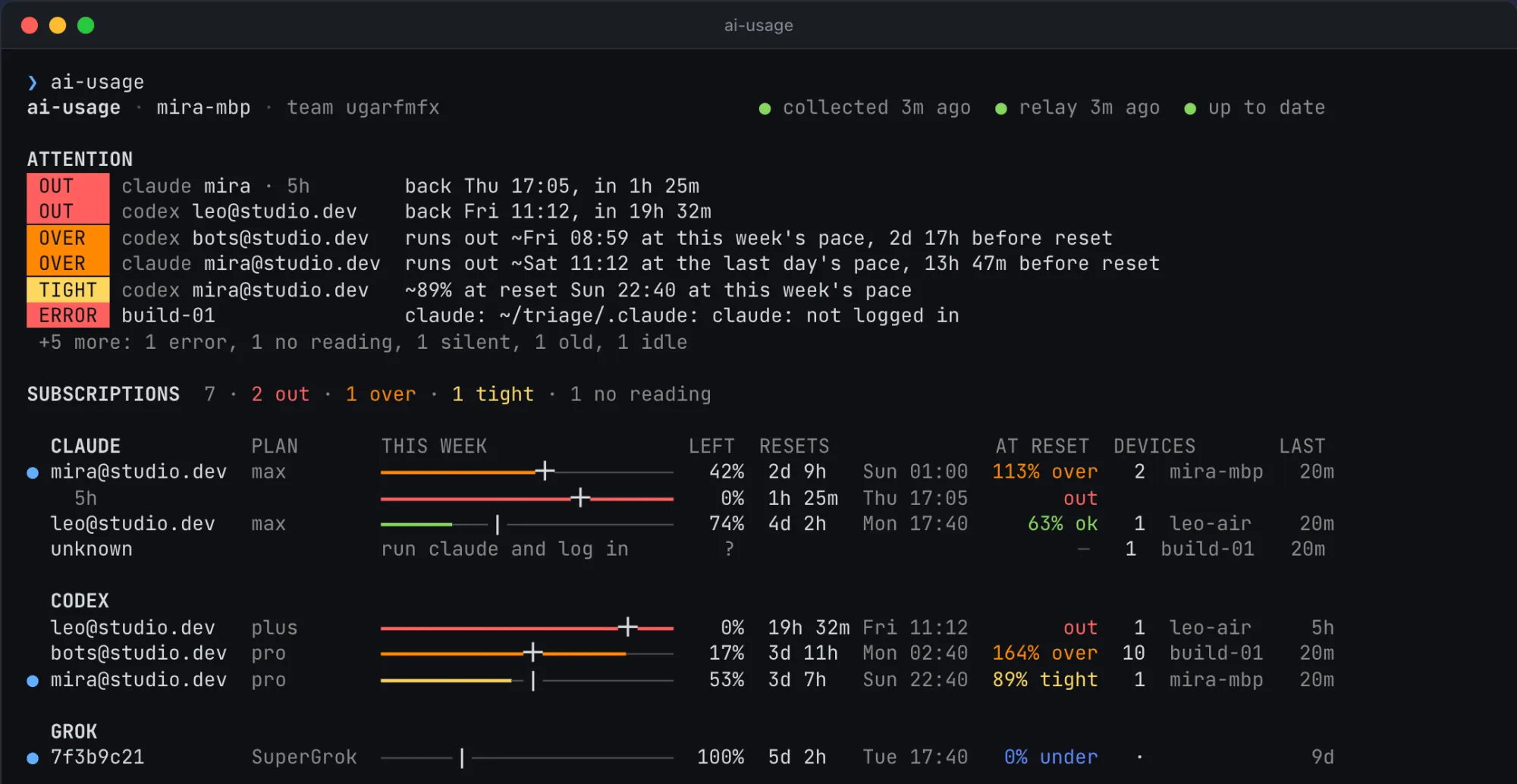
The first line says what matters right now: what’s out and when it’s back, what runs out and when, or where you have the most room. Below it, every Claude, Codex, and Grok subscription your team has, grouped by tool, worst first, with this Mac’s own marked.
Click a subscription for the whole story: a countdown to the moment it runs out, each window, the forecast, which machines spent it, and when it was last used.

Forecasts
A forecast, not just a percentage.
“42% left” means little without the clock. ai-usage works out how full each limit will be at its reset at your pace, and says it plainly. The 5-hour and per-model limits show up too, when they’re the tighter one.
- OVERCodex bots runs out ~Fri 08:59, 2 days 17 hours before its reset.
- TIGHTCodex mira will be ~89% full at its reset on Sunday.
- OKClaude leo will be 63% full at its reset.
- UNDERGrok will leave most of its week unused.
It takes the faster of this week’s pace and the last day’s, so a week that speeds up shows early. In a weekly limit it measures the pace over a day at least, and shows no forecast in the week’s first day unless the window is already over, so one busy morning doesn’t cry wolf. Forecasts are estimates and sharpen as the week goes on.
Attention
Only what needs you.
When something is wrong, it’s in one short list, in plain words, in the menu bar app and at the top of the terminal report. Everything else stays quiet. Click an alert to open it.
- OUTA limit that’s used up, and when it’s back.
- OVEROne that will run out before its reset.
- TIGHTOne of yours that will finish 85–99% full.
- OUTSIDESomeone outside the team using a shared login.
- ERRORSILENTA machine whose tool fails, or that stopped reporting.
- OLDA machine on an older release.
- IDLEA subscription you pay for that nobody used for a week.
- NO READINGA folder nobody’s logged in to, with how to fix it.

A heads-up before the wall.
The menu bar app sends a notification when a limit is out, or will run out before its reset: once per limit until it resets, no spam. Choose when (within a day of running out, any time, or never) and whose (this Mac’s subscriptions or the whole team’s).
Notifications come from the menu bar app while it runs. The terminal tool notifies no one, and there are no Slack or email alerts.

Devices × subscriptions
Your whole team in one window.
Install ai-usage on every laptop, server, and container, join them with your team key, and each of them sees all of them: every machine against every subscription, shaded by how much each one uses. Spot the bot that eats the shared login, and the plan nobody touches.

Who burns what.
Each machine’s share of each subscription, adding up to 100%, for today, 7, 30, or 90 days.
Which machine went quiet.
Switch to Status for each machine’s user, release, last report, and what’s wrong: a tool that fails, an update, or silence.
By project, too.
On each machine, tokens per git repository, worktrees included, so you see which work burns the quota.
Point the menu bar ring at the team’s subscriptions instead of just this Mac’s. Up to 50 machines per team.
$ ai-usage
The same page in your terminal.
No Mac? Prefer the keyboard? Type ai-usage on any Mac or Linux machine and the whole report opens as a page you can scroll: what needs attention at the top, then every subscription with its forecast, every machine, and your projects.
JSON for scripts and agents.
ai-usage --json prints the whole report with a versioned schema, so a script or an agent can pick the account with room.
❯ ai-usage --json | jq -c '.team.providers[]
    | .provider as $p | .accounts[]
    | select(.subscription) | {$p, name, state}'
{"p":"claude","name":"mira","state":"out"}
{"p":"claude","name":"leo","state":"ok"}
{"p":"claude","name":"unknown","state":"unknown"}
{"p":"codex","name":"leo","state":"out"}
{"p":"codex","name":"bots","state":"over"}
{"p":"codex","name":"mira","state":"tight"}
{"p":"grok","name":"7f3b9c21","state":"under"}Servers and containers.
Runs on Linux (amd64 and arm64), scheduled by cron, or inside a container next to your bots.
#!/bin/sh
# Collect usage beside the main process once ai-usage is installed.
if [ -x /home/app/.local/bin/ai-usage ]; then
  /home/app/.local/bin/ai-usage schedule run &
fi
exec "$@"Utilization
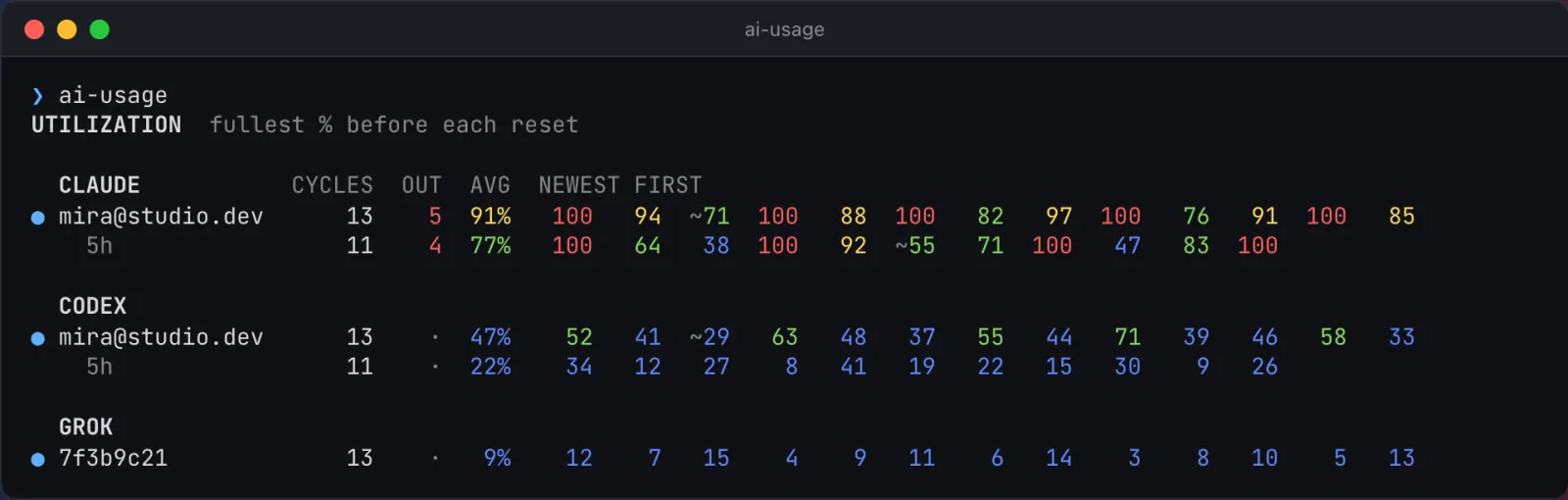
Upgrade the plan that runs out. Cancel the one that doesn’t.
ai-usage remembers how full each subscription got before every reset, for up to 90 days, across the team. Here Claude’s week ran out 5 times in the last 13, while Codex never got past 71%.
Tools
Works with what you already run.
Claude Code
Plus agent sessions in the Claude desktop app. Reading its limits needs Claude Code 2.1.208 or later.
Codex
From its CLI, the ChatGPT app on macOS, or the VS Code, Cursor, and Windsurf extensions.
Grok
From its own log: who’s signed in and the period’s usage.
Hermes
Bots counted against the login they bill through.
Relay
The relay sees numbers, not names.
ai-usage reads what your tools already save on disk, and asks the installed tools for their limits the way their own usage screens do. It never calls Anthropic, OpenAI, or xAI itself, never reads your passwords or keys, and asking for usage spends none of your quota.
Every install, even a team of one, sends a small signed snapshot to a relay every 15 minutes: by default the free one the project runs, or your own. Everything that says who or where is sealed with your team key first.
Each machine, every 15 min
- mira-mbp
- leo-air
- build-01
- 9 bots
Your prompts, replies, code, file contents, and logins stay here.
- signed snapshot, at most 64 KB, names sealed
Relay
Sees
- tools and plans
- quota % and reset times
- token counts, how many machines, and when
- the IP addresses that connect
Cannot read
- machine and user names
- emails and account names
- project paths and errors
Every snapshot is signed, so the relay can’t forge or alter one without your team noticing.
- the whole team, signatures checked
Every machine in the team
Opens the sealed names with the team key and shows everyone: who is out, who runs out next, on which machine.
Install
One line. Then forget it.
No account, no config file, no questions. Each machine collects every 15 minutes on its own, and an installer copy updates itself within about 15 minutes of each release.
- 01
Install on your machine.
Your first report prints right away, with a short guide under it. On macOS 14 or later, AI Usage appears in the menu bar and starts at login.
curl -fsSL https:// raw.githubusercontent.com/ neoromantic/ ai-usage/ main/ install.sh | sh - 02
Print your team key.
In a new terminal, or with the full path the installer printed. Treat the key like a password: anyone with it can read your team’s numbers, and it can’t be revoked.
ai-usage team key - 03
Add every other machine.
On each teammate’s laptop, server, or container, install with the line from step 1, then run this and paste the key. It stays out of shell history. Scripted installs can pass it as
AI_USAGE_TEAM_KEY=… shinstead. After a Homebrew install, run this, thenai-usageto start collecting.ai-usage team join
- system
- macOS or Linux (amd64, arm64). Windows is experimental: it’s built and tested automatically but hasn’t run on real Windows yet.
irm https:// raw.githubusercontent.com/ neoromantic/ ai-usage/ main/ install.ps1 | iex - homebrew
- Or install with Homebrew on macOS or Linux, then run
ai-usageto start collecting. On macOS 14 or later,ai-usage app installadds the menu bar app. A Homebrew copy updates withbrew upgradeorai-usage update, not by itself.brew install neoromantic/tap/ ai-usage - tools
- At least one of Claude Code, Codex, Grok, or Hermes, logged in.
- menu bar
- macOS 14 or later, Apple silicon or Intel. It comes with the installer, or with
ai-usage app install. There’s no separate download.
Releases
What’s new in 0.8.0
One-line installs from 0.2.5 on update themselves within about 15 minutes of a release, so this is most likely what you’re running. A Homebrew install updates when you run brew upgrade or ai-usage update.
Install with Homebrew, on macOS and Linux.
- After a Homebrew install, run ai-usage once to start collecting every 15 minutes. The one-line installer works as before.
- A Homebrew copy never replaces itself. It tells you when a release is out, and its update command runs brew upgrade for you.
- One command adds the Mac menu bar app, on macOS 14 and later, whether you installed with Homebrew or the installer.
- A teammate’s machine on an older release now “should update”, and one that hasn’t after 7 hours is named, with the command to run on it.
Questions
Is it free?
Yes. ai-usage is open source under the MIT license, with no account and no sign-up. The relay the project runs is free too, or you can run your own.
Will it use up my quota?
No. It reads what your tools already write on disk and asks them for their own usage numbers. Asking Claude Code spends no tokens. ai-usage never reads your logins; Claude Code may renew its own expired login while answering, as any Claude Code session would.
Can it see my prompts or code?
It reads your tools’ session logs on your machine only to count tokens; prompts, replies, code, and file contents are never kept or sent. Only counts, percentages, reset times, and tool and plan names go to the relay in the clear; names, emails, project paths, and errors are sealed with your team key.
Which tools does it support?
Claude Code (and agent sessions in the Claude desktop app), Codex (its CLI, the ChatGPT app on macOS, and the VS Code, Cursor, and Windsurf extensions), Grok, and Hermes bots, which count against the login they bill through.
Do I need a Mac?
No. The terminal report runs on macOS and Linux, including servers and containers. The menu bar app and its notifications need macOS 14 or later. Windows is experimental.
How accurate are the forecasts?
They’re estimates from your own pace. Early in a long window they can change from one reading to the next. Old readings are marked as old, and Claude’s limits are refreshed only for folders used in the last hour, so use from claude.ai on the web shows up only after you next use Claude Code on a machine with ai-usage.
Does it show what I spend in dollars?
No. It counts weighted tokens, each kind weighed by what the API charges for it: a measure of how hard a subscription is worked, not a bill.
Can it alert Slack or email?
Not yet. Notifications come from the Mac menu bar app.
How do I remove someone from the team?
Start a new team and give its key to the people who stay. A team key can’t be revoked.
Can I install it with Homebrew?
Yes, from 0.8.0, on macOS and Linux: brew install neoromantic/tap/ai-usage, then ai-usage, which starts the 15-minute schedule. On macOS 14 or later, ai-usage app install adds the menu bar app. Type the full name, neoromantic/tap/ai-usage, in every brew command.
Can I turn off automatic updates?
Not for the one-line installer: every install from 0.2.5 on moves to a new release within about 15 minutes; each download is checksum-verified and test-run before it replaces the old one. A Homebrew install never replaces itself: it updates when you run brew upgrade neoromantic/tap/ai-usage or ai-usage update.
How do I uninstall it?
A few commands remove the schedule, the binary, its data, and the Mac app. They’re under Uninstall in the README. With Homebrew, run ai-usage schedule remove before brew uninstall neoromantic/tap/ai-usage.
Know before you run out.
One line to install. Every subscription, every machine, one page.
curl -fsSL https:/Version 0.8.0 · MIT · macOS and Linux